
Find and clean up empty or duplicate companies
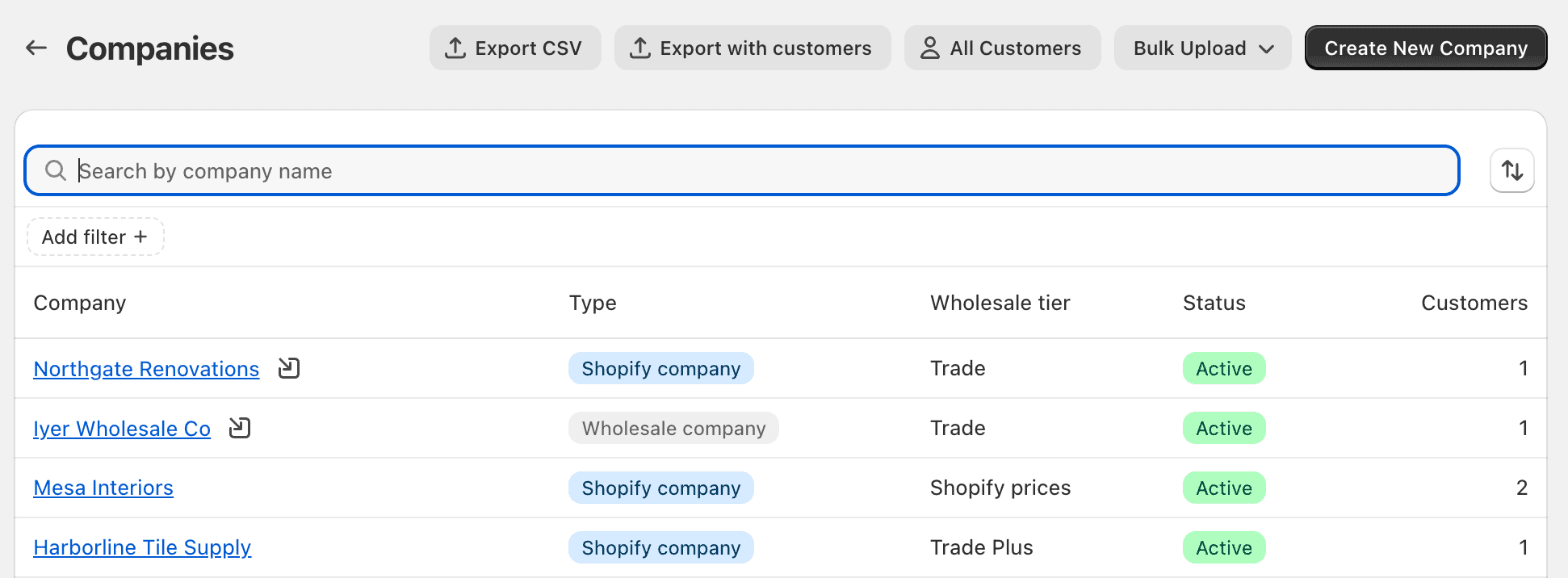
Filter the companies list to companies with no customers, export every company (with or without its customers and approved date) to a spreadsheet, and delete empty Wholesale companies in one step.
Over time a trade program collects companies nobody uses: a company created for an applicant who never got approved, the original record left behind when a customer moved to a new company, or a bulk upload that created a company twice. The Companies page has everything you need to find and remove them.
Find companies with no customers
- Open Companies in the app.
- Click Filter, choose Customers, then tick No customers.
The list now shows only companies with no customers, and the filter stays on while you search, filter by tier or change pages. Remove the filter from the chip above the list.
Export your companies to a spreadsheet
Click Export CSV at the top of the Companies page. You get one row per company with:
- Company ID and name
- Type (Wholesale company or Shopify company)
- Wholesale tier and status (Active, Expired, No tier or Not approved)
- Number of customers and applications
- Created, approved and expiry dates
With the No customers filter on, the button reads Export empty companies and exports only those.
Sort the spreadsheet by name to spot duplicates: two rows with the same name, one of them with 0 customers, is usually a leftover.
Export companies with their customers and approved dates
Click Export with customers at the top of the Companies page (under More actions on a narrow screen).
You get one row per customer with:
- Company ID, company name and type
- Wholesale tier and status
- Created, approved and expiry dates of the company
- The customer's name and email
A company with no customers still appears, on one row with the customer columns blank, so every company is in the file.
To see which companies have no approved date, sort or filter the spreadsheet on the Approved column: a blank cell is a company with no approved date. What that means depends on its tier:
- The tier never expires. The company is Active and its customers get the discount. The approved date only starts the expiry clock, so a tier without an expiry does not need one.
- The tier expires. The company reads Not approved and its customers get no discount until it has an approved date. Open the company in the app and use Set to Today on its approved date (see Discount expiration).
Delete empty Wholesale companies
With the No customers filter on, a banner offers Delete N on this page. It lists the companies before anything happens, and you confirm in a second step.
Only a Wholesale company that has nothing attached is deleted: no customers, no applications, no uploaded files and no locations. Each company is checked again at the moment it is deleted, so one that gained a customer in the meantime is kept. Anything kept is listed with the reason. Deleting cannot be undone.
Shopify companies are deleted in Shopify admin. Open Customers → Companies in your Shopify admin and delete the company there. The app removes it from its own list automatically.
Combine two companies for the same business
When both records have customers, the app does not guess which one to keep. A customer can belong to only one company, so:
- Decide which company to keep.
- Open each customer of the other company and add them to the company you are keeping.
- The other company now has no customers. Delete it with the filter above.
Why duplicates appear
- The same business applied twice, or two people from one business each applied.
- A company created from an application before it was approved. Since 23 November 2026, creating it again from the same application reuses the empty company instead of making another one.
- A bulk upload run more than once. When a later upload puts a customer into a new company, the customer moves (a customer belongs to one company) and the original company is left empty.
- A Wholesale company that also exists in Shopify B2B. The app links the two automatically. If you saw a second, empty "Shopify company" with the same name appear between 21 and 24 November 2026, that was a sync error on our side; the app removes those copies by itself.
Customers with no company
The Customers page has a No access tab: customers who are in no company and have no tier of their own. They pay your regular prices and the app does nothing with them. They stay because they are customers in your Shopify store. Add one to a company, or give them a tier from their page, to give them wholesale pricing.
For customers whose membership ran out, see When a membership expires.
Create Shopify B2B companies from approved applications
Create native Shopify B2B companies and add their customers from the app, approve applicants into a new company, and check customer accounts before you switch.
Give us collaborator access
If you are stuck on setup, send us a collaborator request code and we will install and configure B2B Onboarding & Wholesale on your store for you.