
Auto-creating customers from submissions
Automatically find or create the Shopify customer when a sign-up form is submitted, so applications arrive ready to approve.
Every application in the app must be linked to a customer in Shopify before you can approve it. By default you do this yourself when reviewing the application - searching for an existing customer or creating a new one. If you'd rather have that happen the moment a form is submitted, you can turn on Auto-create customer from form submission.
What the setting does
When enabled, every sign-up form submission is matched to a Shopify customer automatically:
- If a customer with the same email already exists, the application is linked to that customer. Nothing is duplicated.
- If no matching customer exists, a new customer is created from the form's email, phone, and first/last name fields.
Either way, the customer is linked to the application for you, so when you open it to review, the customer is already assigned - you can go straight to approving it.
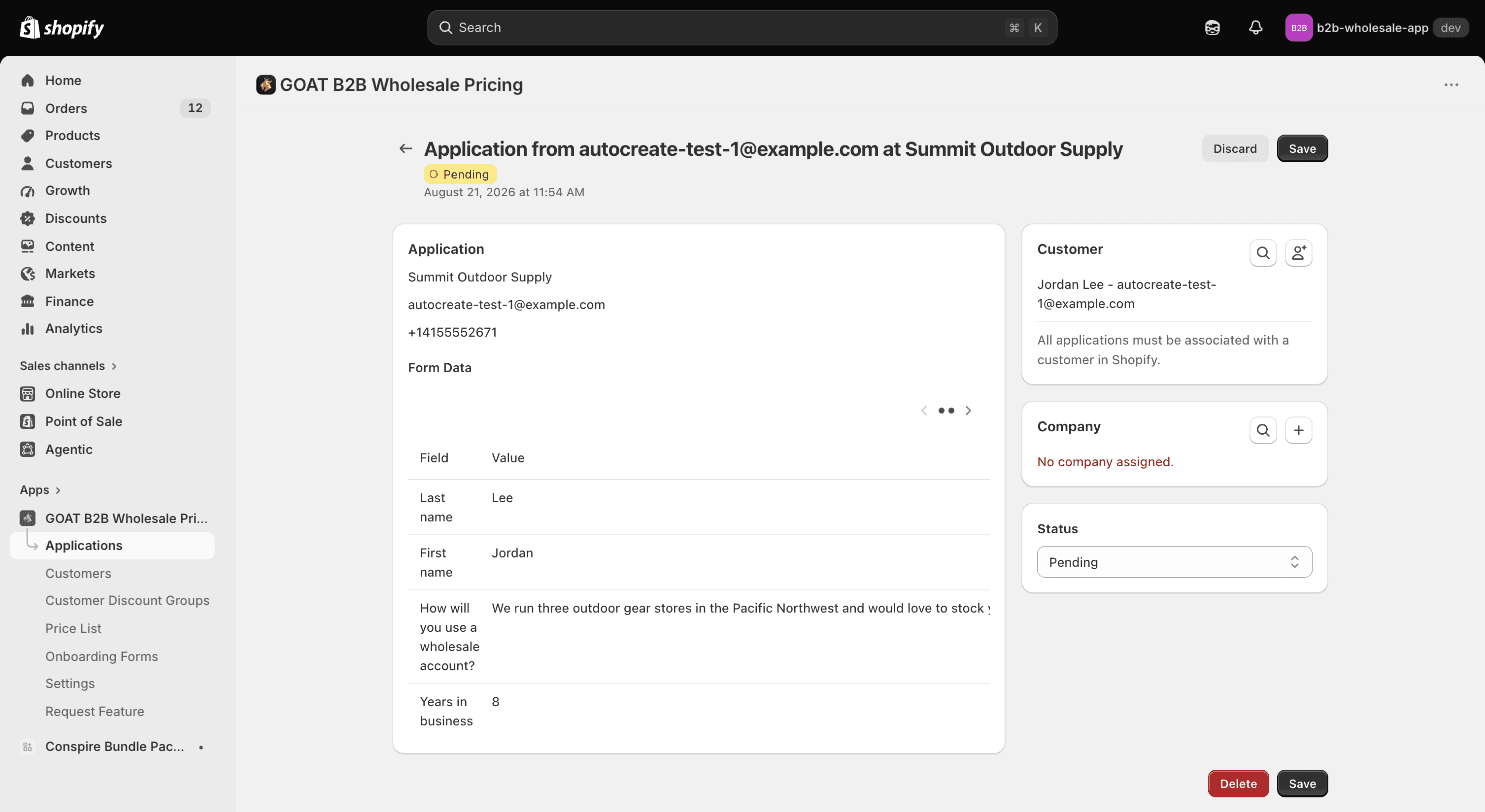
This setting is off by default. Some stores treat any customer account as an approved shopper, so we don't create accounts unless you opt in. Leave it off if you'd prefer to assign customers manually during review.
Applicant tags
So you can tell auto-created applicants apart from the rest of your customers, the app tags them as it goes:
- On submission, the customer is tagged
trade-applicant. - When you approve the application, the tag changes to
trade-approved. - When you deny it, the tag changes to
trade-denied.
These tags are handy for segmenting customers, building Shopify customer groups, or filtering your customer list. They're managed automatically - you don't need to add or remove them by hand.
No account invitation is sent
Auto-created customers are not sent a Shopify account activation email. The applicant hasn't been approved yet, so no invitation goes out at submission time. If you want the customer to activate their account, send the invitation from Shopify (or from the application's customer card) once you've approved them.
This is different from creating a customer manually during review, where the app offers to send an account invitation at that moment.
Enabling it
- In the Shopify admin, open Settings in the app.
- Under Applications, check Auto-create customer from form submission.
- Click Save.
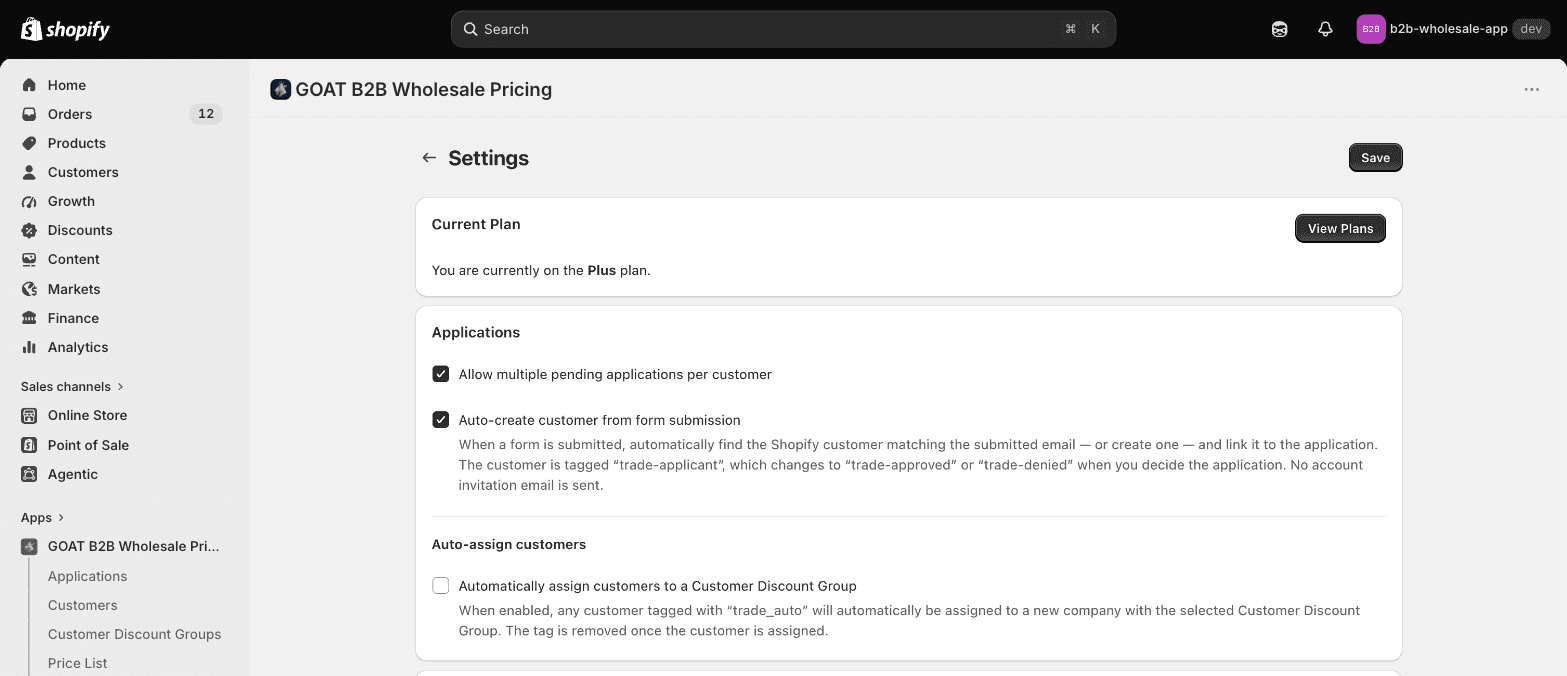
New submissions from that point on will be matched or created automatically. Existing applications are unaffected.
A note on email and phone numbers
Shopify requires that every customer's email address and phone number be unique across your store. That means auto-creation can occasionally hit a conflict - for example, when an applicant's phone number already belongs to a different customer. The app handles these cases gracefully (it never fails the submission, and it never edits another customer's details behind your back), but it will sometimes flag an application for you to resolve.
See Customer email & phone uniqueness for exactly what happens and how to resolve it.
What if it's turned off?
You lose nothing - you assign the customer yourself while reviewing the application, which is the default flow. The same email and phone uniqueness rules still apply when you create a customer manually.
Managing B2B applications
Review, assign and approve wholesale sign-up form submissions for your B2B program from the B2B Onboarding & Wholesale approval dashboard.
Show B2B pricing on the product page
Use the Trade Price app block to show the correct pricing to both B2C and wholesale B2B customers on your Shopify product pages.