
Managing B2B applications
Review, assign and approve wholesale sign-up form submissions for your B2B program from the B2B Onboarding & Wholesale approval dashboard.
We understand that sign ups, onboarding and qualifying information are super important aspects of any B2B program. That's why we've designed applications the flexible way that we have, to support any use case.
When someone fills out your sign-up form, it will show up in the app's application dashboard under the Manage Applications tab on the left hand side of the Shopify admin.
Reviewing applications
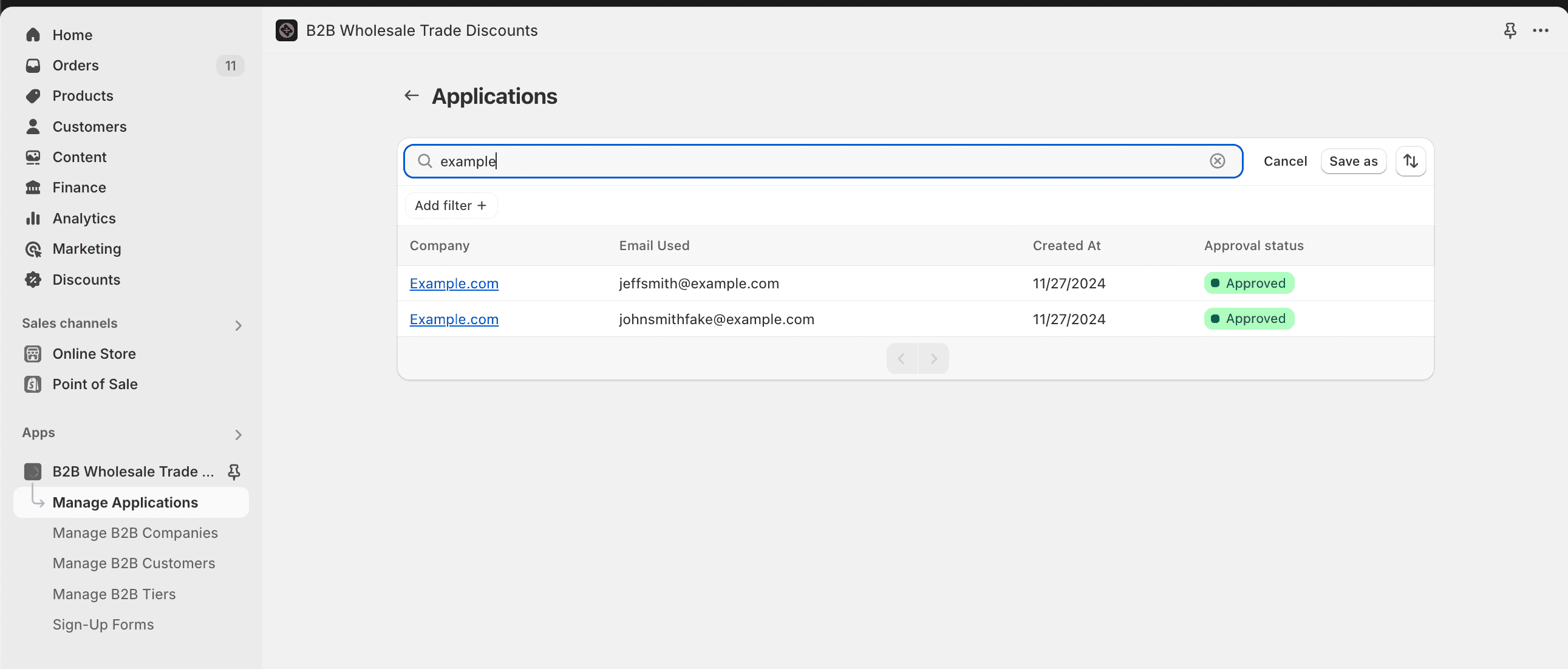
In this table you can filter by status, or search by customer details.
Assign applications to customers and companies
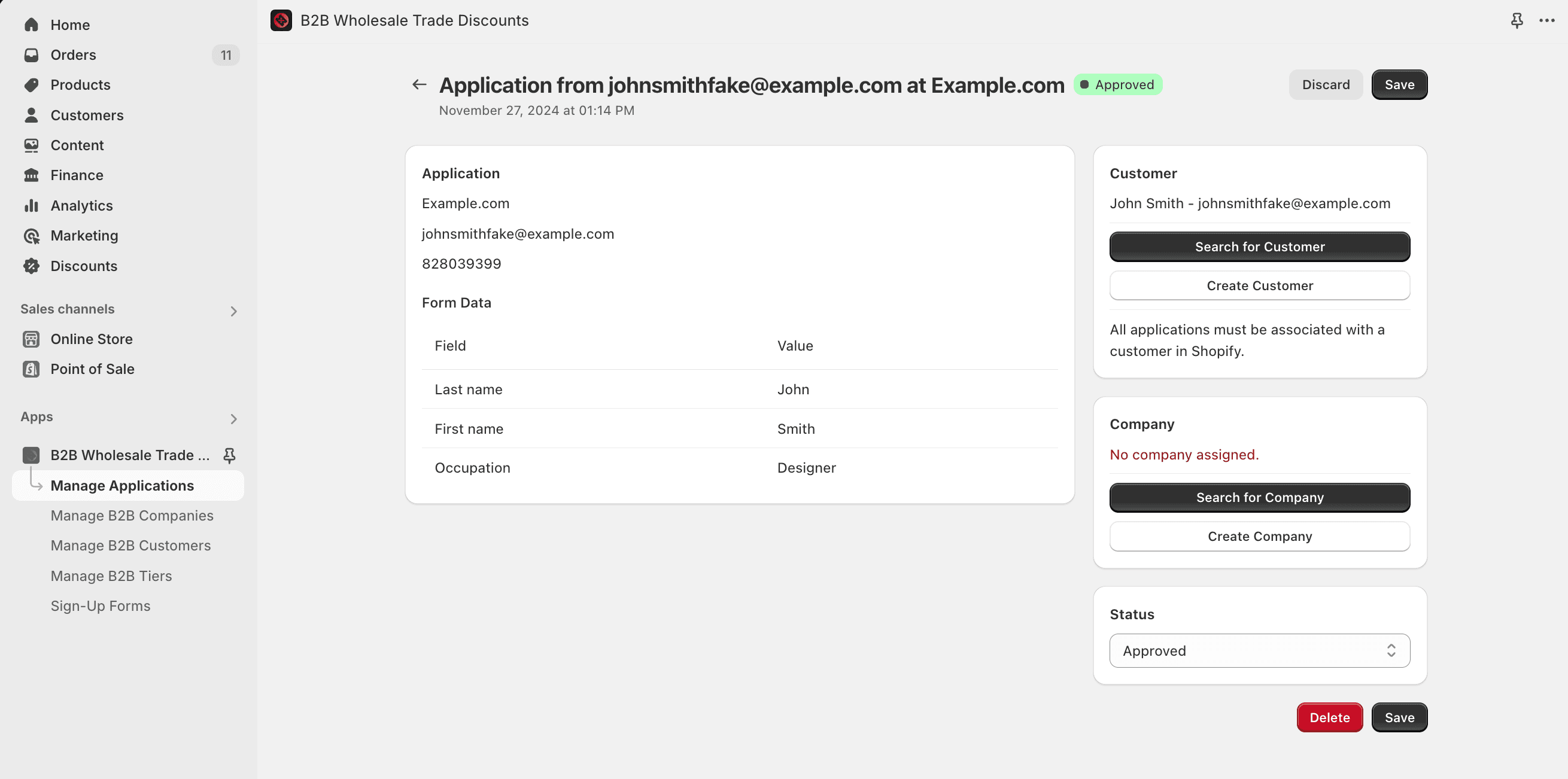
In order to update an application, it must be assigned to a customer in Shopify. If the customer doesn't already exist in Shopify, you're given the option of creating the customer and sending an account invitation.
Prefer to skip this step? Turn on auto-create customer from form submission and the app will find or create the matching customer the moment a form is submitted, so applications arrive already assigned.
When you create a customer - whether automatically or manually here - keep in mind that Shopify requires each customer's email and phone number to be unique across your store. If an applicant's phone number is already in use by another customer, creation can fail. See Customer email & phone uniqueness for how the app handles this and how to resolve a conflict.
Our application also supports assigning applications to Companies. While an application does not need to be assigned a company, this can be useful for organizational purposes.
Note: by default, companies live in the app and are separate from Shopify's own B2B companies, so they work on any plan and with any customer accounts version. On stores that have Shopify B2B, the approval screen also offers a Shopify managed Company option that links the applicant to a native Shopify company instead - see Shopify B2B companies and the app.
Application approval
After reviewing the details of the submission, it is important to update the status of the application. Status is useful for easily identifying how an application submission was received and if further action is required.
| Status | What it means |
|---|---|
| Pending | Waiting for you to review it. This is where every submission starts. |
| Needs info | You've asked the applicant for something before you can decide. |
| Approved | You've accepted them into your wholesale program. |
| Denied | You've turned them down. |
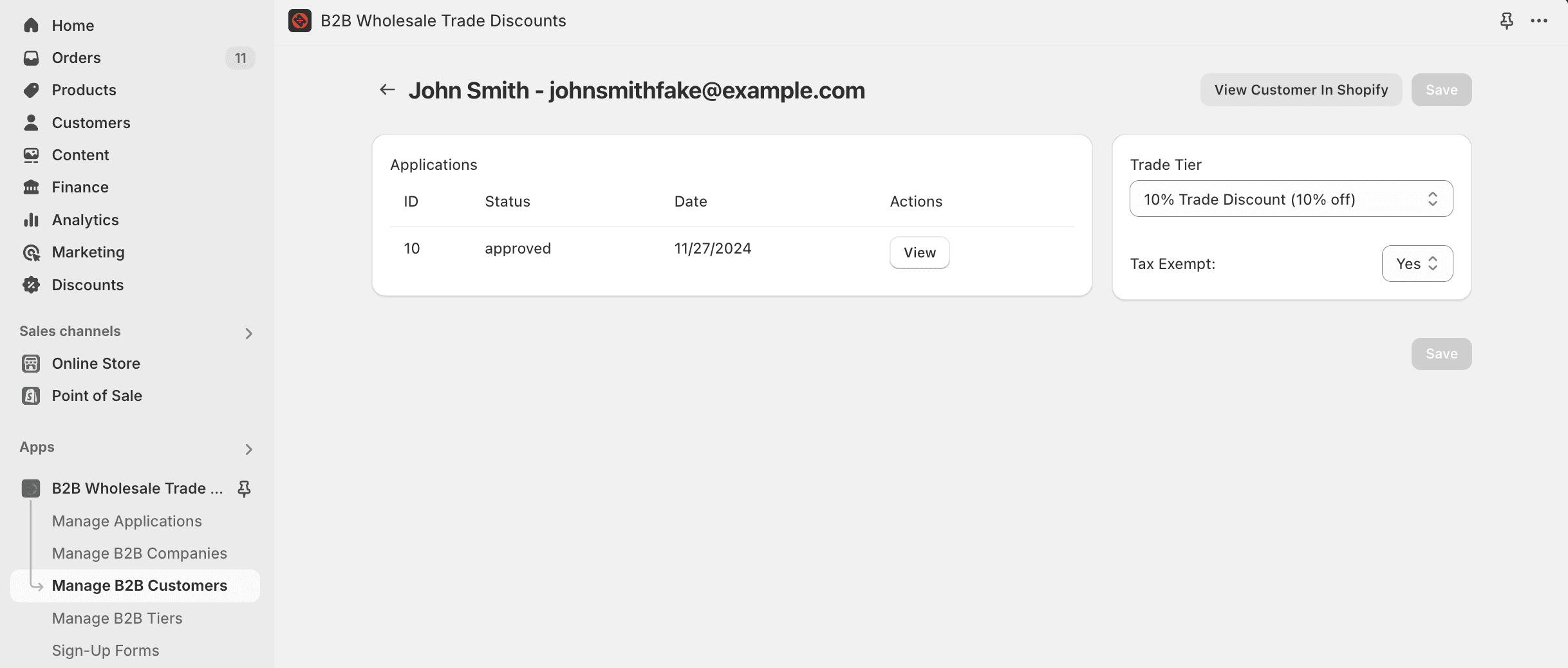
It is important to note that updating the status of the application does not immediately grant or remove customer access or discounts. This is intentional, we designed our application to be as flexible as possible understanding that certain B2B programs require that customers or companies reapply after a certain amount of time has elapsed to keep their status active. As a result customers and companies can possibly have multiple applications associated.
Discounts are managed at the Customer or Company level. Tax exemption is decided when you approve: the approval form asks you to choose Taxable or Tax exempt for the company, and every customer in that company inherits it. You can change it later on the company page.
Deciding tax exemption
Approving an application requires a tax decision. Review what the applicant submitted, such as a resale or exemption certificate they attached, then choose:
- Taxable. Sales tax is collected on their orders as normal.
- Tax exempt. Their Shopify customer record is marked tax exempt and no sales tax is charged at checkout.
The decision applies to the whole company, so anyone you add to it later inherits it. The app records who made the decision and when, and writes an entry to the Activity Log each time exemption is granted or revoked, so you have a trail if you are ever asked to substantiate an exemption.
Only choose Tax exempt after verifying a valid certificate. A customer marked exempt without one leaves you responsible for the tax that should have been collected. The app never marks anyone exempt on its own; every exemption traces back to a decision you or your team made.
Until a company has a decision, the app leaves its customers' tax settings in Shopify untouched. The company page shows a No tax decision badge in that state.
Asking for more information
Not every application is a yes or a no. If someone hasn't attached their resale certificate, or filled a field in wrong, set the status to Needs info instead of denying them.
An application marked Needs info stays in your open queue rather than being filed away as decided, and the applicant keeps their applicant tag rather than being marked as denied. You can ask more than once if the first answer doesn't settle it.
Explaining your decision
When you set an application to Needs info or Denied, a box appears for you to write a reason.
Say what you actually need in plain terms - "please upload your resale certificate" or "we don't currently supply your region". Whatever you write is shared with the applicant, so write it for them rather than as an internal note.
The reason is also recorded on the application and in your activity log, so anyone on your team can see why a decision was made.
Writing a reason doesn't email it to anyone on its own. See emailing applicants your decision for how to get it in front of them.
When someone can apply again
Someone you've denied, or asked for more info, can submit your form again with the same email address. That's the point of giving them a reason - they can fix the problem and come back.
They're blocked from submitting again while they have an application still Pending with you, or once they're Approved and already have a wholesale account. In both cases the form tells them so rather than silently taking another submission.
If you'd rather allow repeat submissions in every case, turn on Allow repeat applications from the same email under Settings in the app.
Reapplying creates a new application rather than reopening the old one, so you'll see both in the table with the newest at the top.
Creating your first sign-up form
Build a customizable wholesale sign-up form to start onboarding Shopify customers to your B2B, wholesale, or trade program.
Auto-creating customers from submissions
Automatically find or create the Shopify customer when a sign-up form is submitted, so applications arrive ready to approve.