
Import wishlists from a CSV file
Create wishlists for your customers in bulk from a spreadsheet: the columns, how to validate a file before importing, how errors are reported, and what the import does and does not send to customers.
Create wishlists for your customers in bulk from a spreadsheet. This is how stores move wishlists over from another app, or build a starting project for each trade customer before they log in.
Does the import email my customers?
No. Importing wishlists sends nothing to your customers.
- No email from the app. The only email the app sends to a customer's contacts is the share email, and that goes out only when a customer clicks Share and enters addresses themselves.
- No Klaviyo events. If you have connected Klaviyo, an import does not send Wishlist Created or Added to Wishlist, so a flow triggered by those metrics does not fire for imported wishlists. Events start as usual once the customer uses the wishlist themselves.
- Nothing changes on the customer in Shopify. The import only looks the customer up by email.
Customers simply find the wishlist in their account the next time they log in.
Prepare your CSV
In the app, open Wishlists, then Import CSV. Click Download CSV template for a file with the right columns and three example rows.
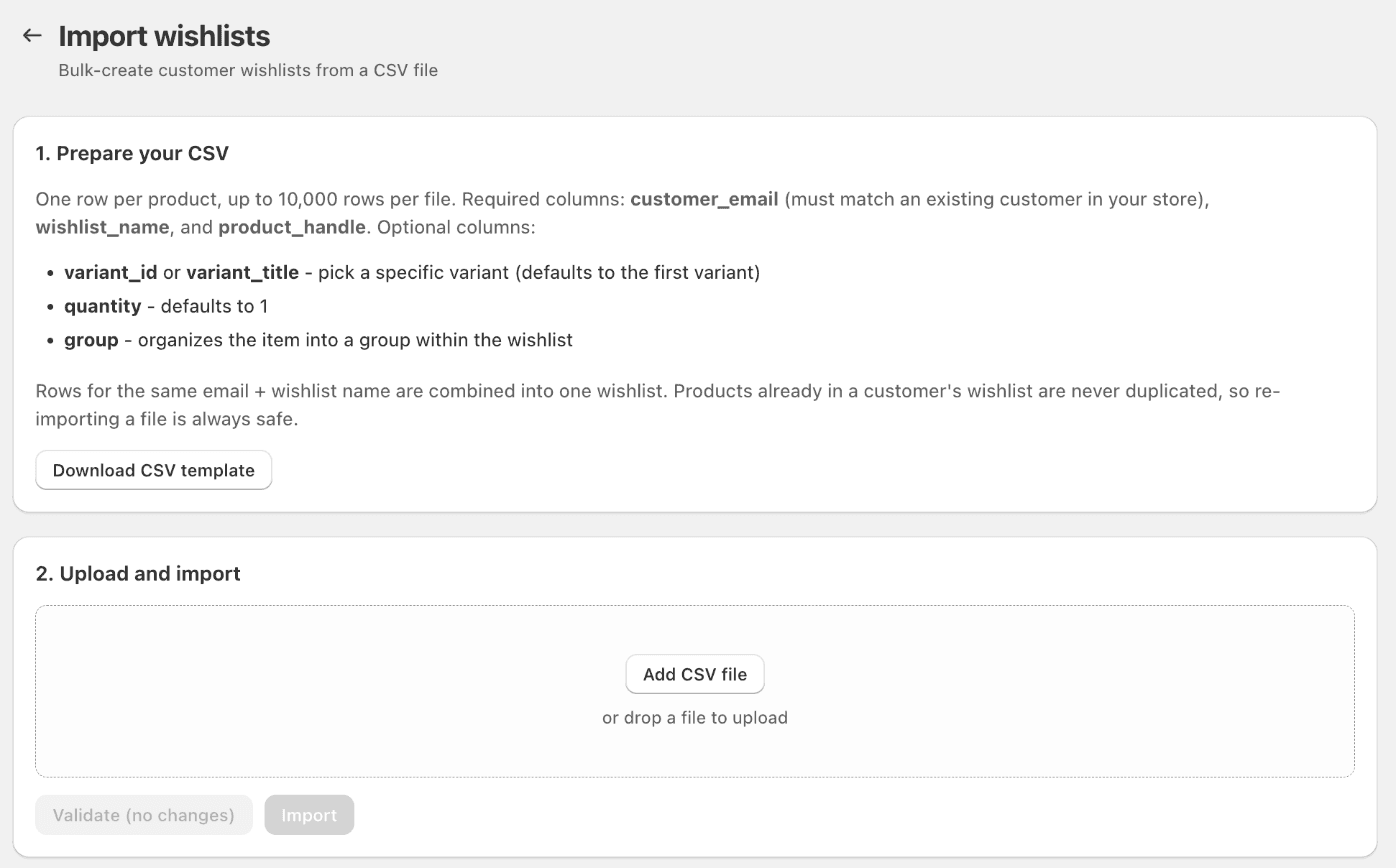
One row per product, up to 10,000 rows per file.
| Column | Required | What it is |
|---|---|---|
customer_email | Yes | Must match an existing customer in your store. The import does not create customers. |
wishlist_name | Yes | The wishlist to add the product to. Created if the customer has none by this name. |
product_handle | Yes | The product's handle, the last part of its URL (/products/ceramic-subway-tile). |
variant_id | No | The numeric Shopify variant ID, to pick one variant. |
variant_title | No | The variant's title or option value (for example Glossy White), when you do not have the ID. |
quantity | No | Defaults to 1. |
group | No | Puts the item in a group inside the wishlist. The group is created if it does not exist. |
When neither variant_id nor variant_title is given, the product's first variant is used.
Rows with the same email and wishlist name become one wishlist:
customer_email,wishlist_name,product_handle,variant_id,variant_title,quantity,group
jane@example.com,Kitchen Remodel,ceramic-subway-tile,,Glossy White,24,Backsplash
jane@example.com,Kitchen Remodel,brass-cabinet-pull,,,12,Cabinets
mike@example.com,Spring Order,ceramic-subway-tile,41234567890123,,10,
Validate, then import
- Drop your file on Add CSV file.
- Click Validate (no changes). The app reads every row and tells you how many are ready to import and which ones have a problem, without creating anything.
- Fix what it found, then click Import.
Small files finish in a few seconds. A larger file runs in the background and the page shows its progress; you can leave the page and come back, and the result is listed under recent imports.
When a row has a problem
A problem row never stops the rest of the file. After a validation or an import, Rows needing attention lists each one with the reason:
- No Shopify customer found with email …: create the customer in Shopify first, or correct the address.
- No product found with handle …: check the handle against the product's URL.
- Variant … not found: the variant ID does not belong to that product.
- Already in wishlist … no duplicate created: the customer already has that variant in that wishlist. Nothing to fix.
Click Download error report (CSV) for those rows with their original columns and an error column. Correct them in that file and upload it as it is; the extra column is ignored.
Importing the same file twice
It is safe. A wishlist with the same customer and name is reused, and a product that is already in it is skipped, so a second import adds only what is missing.
Plan limits
Importing is available on every plan. The Free plan holds 50 wishlists across the store: once the store reaches that number, rows that would create another wishlist are reported as errors, and rows for existing wishlists still import. The Project planner plan has no limit. See Plans, pricing & billing.
If you have questions or need help, reach out through our contact form.
Mark products as quote-only on wishlists
Mark products as quote-only so customers can save them to a wishlist with no price and no add to cart, picked in the app or synced from a product metafield.
Let customers share wishlists with a link
Customers can share their wishlists and project lists with others using a generated link - great for design clients, contractors, and purchasing teams.