
Quote requests
Let customers submit their Shopify cart as a quote request, then review it and convert it into a draft order invoice.
Quote requests turn your cart page into the start of a negotiated sale. Instead of checking out, a customer can submit the contents of their cart along with their contact details. You review the request in the app, convert it to a draft order, and send an invoice with your final pricing.
This is ideal for wholesale buyers, large custom orders, or any store where prices are quoted per customer.
Add the quote button to your cart page
The quote button ships as a theme app block:
- In your Shopify admin, go to Online Store → Themes and click Customize.
- Navigate to your cart page in the theme editor.
- Add the app block named Quote Request where you want the button to appear.
- Optionally adjust the button label (defaults to "Request a Quote") and its colors in the block settings.
- Click Save.
What customers see
Clicking the button opens a modal that shows a summary of the customer's cart and asks for their name, email, phone, and an optional note. Submitting the form sends the full cart (items, variants, and quantities) to the app as a quote request. The customer's cart is not cleared and no order is created at this point.
Reviewing and converting requests
New quote requests appear in the app under Quote Requests, and the dashboard shows a banner when requests are waiting for review. Each request tracks a status: pending, reviewed, converted, or rejected.
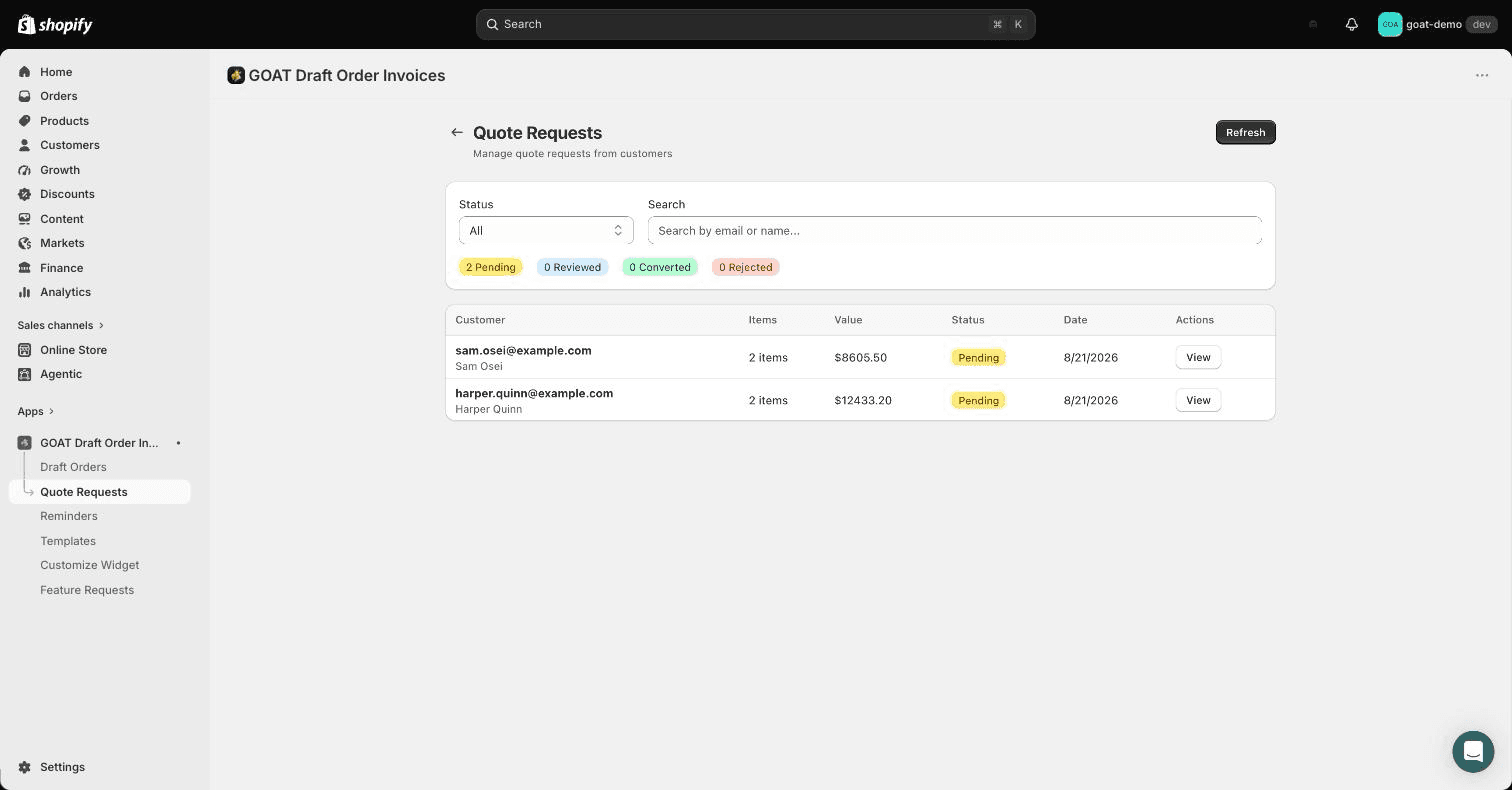
To turn a request into a sale:
- Open the request from the Quote Requests page and review the requested items and quantities.
- Convert it to a draft order. The cart items become draft order line items, ready for you to adjust pricing, add discounts, or edit quantities.
- Send the invoice. From here it behaves like any other draft order invoice: it shows on the customer's account page, payment reminders follow up automatically, and the customer pays through Shopify's secure checkout.
Requests that don't work out can be marked rejected so your queue stays clean.
Payment reminders
Send automated email reminders for Shopify draft order invoices that are still unpaid, on a schedule you control.
Connect Klaviyo
Send draft order invoice, reminder, payment and quote request events to Klaviyo so you can trigger flows from them and keep invoiced customers out of abandoned checkout emails.